Jargon Tunnel Broker
Running as a Service on Windows NT/2000/2003
Overview:
The Jargon Tunnel Broker can be set up to run as a service on Windows NT/2000/2003.
This allows you to start and stop it using the Services applet from the
Control Panel, or with the "NET START/STOP" commands from a command prompt or
batch file that is run as a scheduled task. Running as a service avoids the need
to keep open the Tunnel Broker GUI Control Panel and command prompt windows.
This document describes how to set up the Jargon Tunnel Broker to run
as a Service on Windows NT/2000/2003.
Requirements:
The zip version of the Tunnel Broker install file contains versions of the necessary
Windows Toolkit programs (instsrv.exe and srvany.exe) for each supported Windows version
in the following folders. This assumes that the Tunnel Broker is installed in C:\tunnel.
- C:\tunnel\win32\RunAsSvc\Win2000
- C:\tunnel\win32\RunAsSvc\Win2003
- C:\tunnel\win32\RunAsSvc\WinNT
Note: The entire set of Windows Server 2003 Resource Kit Tools can be downloaded from Microsoft at:
http://www.microsoft.com/downloads/details.aspx?FamilyID=9d467a69-57ff-4ae7-96ee-b18c4790cffd&DisplayLang=en
This toolkit has many useful utilities.
Installation Instructions:
1. From a command-prompt on the NT Server, go to the appropriate folder for
your operating system (from above list) and then type the following (modify
the pathname as needed for your install directory and Windows OS version):
.\instsrv TunnelBroker
C:\tunnel\win32\RunAsSvc\[WinXXXX]\srvany.exe
2. Open up the Control Panel-->Services icon.
Select the TunnelBroker service and edit its properties
in the "Startup ..." dialog:
Startup Type: manual
Log on As:
(x) This account: DOMAIN\Administrator
Password: <your administrator password>
Confirm Password: <repeat password>
(Note: Administrator is used because a user must have network permissions to use srvany.exe)
3. Run RegEdit.exe.
Notes:
- Regedit is a dangerous program! Back up your registry files first!!
- The following assumes that the Jargon Tunnel Broker is installed in the folder "C:\tunnel".
- If installed elsewhere, substitute the correct folder name for this value.
- Do NOT enter any quote marks around the values
- Create Key:
HKLM\SYSTEM\CurrentControlSet\Services\TunnelBroker\Parameters
(Note: "HKLM" is "HKEY_LOCAL_MACHINE", abbreviated here for brevity)
- Under "Parameters", create an "Application" value of type REG_SZ (string):
C:\Program Files\JavaSoft\JRE\1.3\bin\java.exe
(or wherever a JRE 1.2 or 1.3 java.exe executable is installed).
- Also create an "AppParameters" Value of type REG_SZ (string):
-classpath C:\tunnel\lib\jtunnel.jar;C:\tunnel\lib\o4glrt.zip b.Server C:/tunnel/system/tunnel.ini
(NOTE1: This goes all on one line, it may be line wrapped here for readability)
(NOTE2: Yes, the value has both "\" and "/" slashes)
- Also create an "AppDirectory" value of type REG_SZ (string):
C:\tunnel\win32
4. Start the service and watch it run.
Starting and Stopping Tunnel Broker and AppServer
The Tunnel Broker must be started after the Progress AppServer is not
only started, but has fully initialized and started all its server agents.
For this reason, the Tunnel Broker CANNOT be started automatically
because it will try to attach to AppServer agents before they are ready,
while the AppServer is still busy getting itself organized.
To start and stop the Tunnel Broker manually, go into the Services
applet (from the Control Panel or Administrative Tools in Start Menu).
You can also automate the starting and stopping of both processes
by using batch scripts that are run by the Windows Task Scheduler.
Create four batch files containing these commands. The name of the
AdminService may vary depending on your version of Progress, look in
the Services applet for the correct service name. Samples of these
scripts are included in the C:\tunnel\win32\RunAsSvc folder.
- start_tb.bat: net start TunnelBroker
- start_as.bat: net start AdminService9.1D
- stop_tb.bat: net stop TunnelBroker
- stop_as.bat: net stop AdminService9.1D
Then set these up to run as scheduled tasks:
Start-->Programs-->Accessories-->System Tools-->Scheduled Tasks
For example, you could set up these scheduled tasks (run as administrator):
2:00 AM run stop_tb.bat to stop tunnel broker
2:05 AM run stop_as.bat to stop PSC admin server
2:10 AM run some backup script
4:00 AM run start_as.bat to start PSC admin server
4:05 AM run start_tb.bat to start tunnel broker
If you have a really slow server, wait more than 5 minutes before starting
the tunnel broker.
If using a unix or linux server, you can do similar things with shell scripts and 'cron'.
Screen Samples
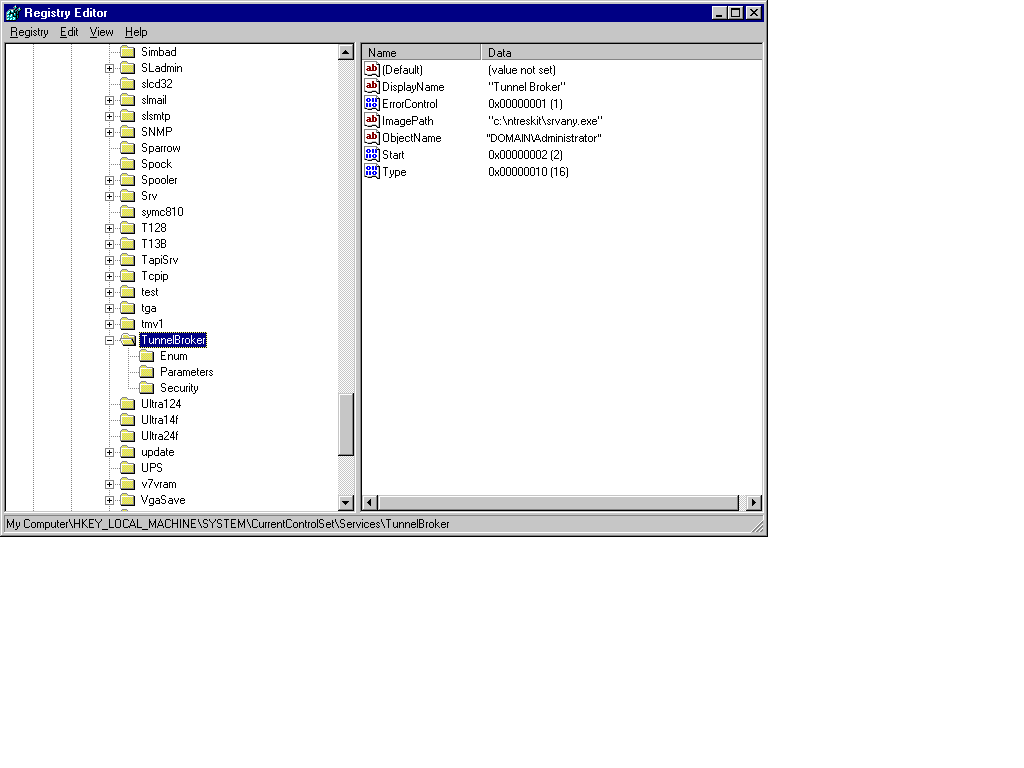
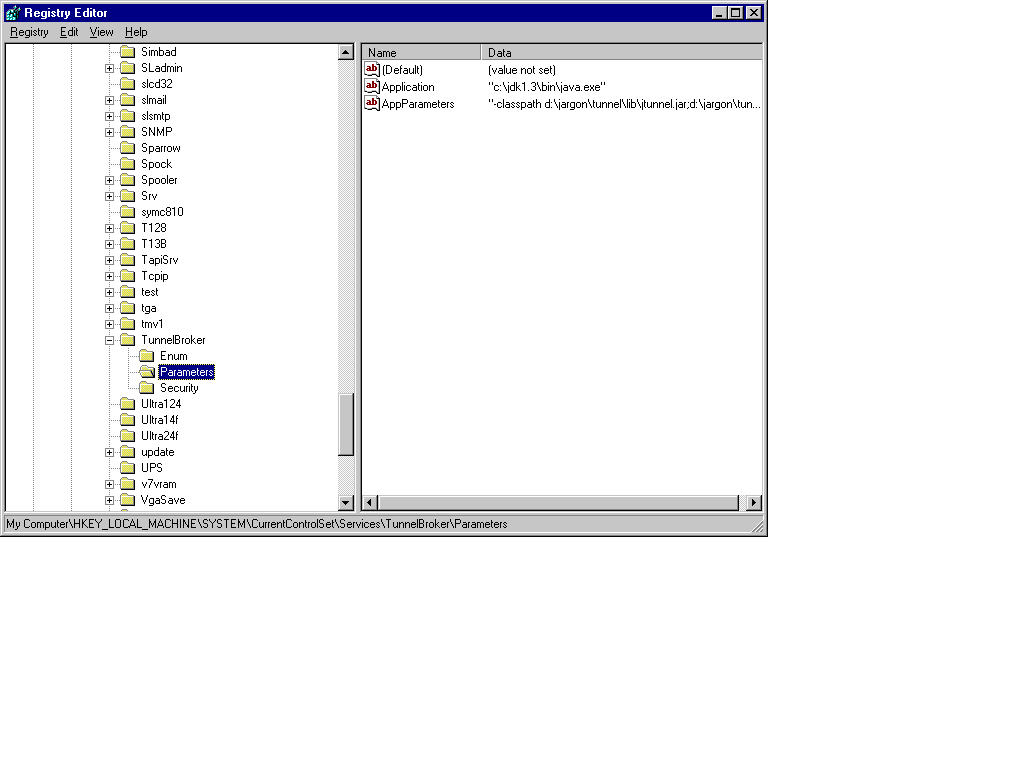
See the attached screen images for examples of the Registry entries for
a sample Tunnel Broker setup. Note that this sample uses different directories
for the java.exe program and the tunnel broker working directory, compared
to the above examples. The above examples are the recommended default values,
but you can use whatever directories you want.
The first screen shows the TunnelBroker
service values that were created in steps 1 and 2 above. NOTE: ObjectName
in this image is the user that the service runs as. This user must have
network permissions. This service cannot run as the LocalSystem account.
"Administrator" will work.
The second screen shows two of the three
values that should be added to the Parameters key in step 3. (AppDirectory
is not shown, but it should be added as well to specify the tunnel broker
working directory. Otherwise all scripts and parameters must use full pathnames
instead of relative ones).
Copyright © 2000, 2001, 2004 Jargon Software, Inc. All
rights reserved.
|