
GridBag Layout Manager
Contents
Overview
Java offers several different Layout Managers, which allow developers to design screen contents by using logical abstractions instead of hard-coded pixel coordinates. One of the advantages of this approach is that screens can automatically be resized without any additional development work if they are designed correctly to begin with. It also simplifies deployment into diverse environments that may have display devices with many different resolution levels.
Of all of the Java Layout Managers, the oddly-named "GridBag" Layout Manager offers the most precise control in arranging components within a container, specifying the relative spacing between them, and controlling which components grow and by how much when their container is resized.
Design of GridBag Layout Manager.
The GridBag Layout Manager places all components into cells in an X/Y rectangular grid system. The X coordinate specifies the horizontal positioning within the grid, with X = 0 meaning the leftmost column, X = 1 being the next column to the right, and so on. Likewise, the Y coordinate specifies the vertical positioning within the grid, with Y = 0 being the top row, Y = 1 being the next row down, and so on. There are also width and height values which specify how many columns wide and how many rows high an individual component is. In Jargon Writer, these X/Y coordinates and width/height values are determined automatically, based on how components are positioned within the grid and on how many cells they occupy.
The Manager automatically determines how many rows and columns are used by examing the constraints (parameters) of each component in a container. Any row that is completely unoccupied by any part of any component is ignored, as if it were not there, and likewise for empty columns. This means that leaving empty rows and columns between components will not affect the graphical representation of the layout in any way. A panel with one label in cell (0,0) and one textfield in the cell to its immediate right (1,0) will look exactly like a similar panel where the textfield is in a cell one grid position to the right (2,0) with one empty cell between it and the label. However, the latter panel is a better layout design because it makes it easier to add more components or to rearrange components in some future revision.
Unlike in simpler layout systems, a GridBag component does not necessarily fill its entire cell, and cells in one row or column may be larger or smaller than those in another row or column. Any given cell will be at least as large as the component it contains (inset constraints can make it larger than its component), and all cells in a given row or column will be as large as the largest cell in that row or column. When one component is significantly wider or higher than other components, it is often desirable to change it to occupy more than one cell vertically or horizontally, so that two or more smaller components may fit alongside it or above/below it. In Jargon Writer, this is done by dragging one edge of the component to "stretch" it into two or more cells across or down in the grid space.
Constraints.
The "Layout" tab in the Properties Tabpanel in Jargon Writer's Design
Window is where the various parameters ("constraints") for an object can
be viewed and changed. As noted above, the X/Y coordinates and the cell
height/width parameters are view-only, since they are automatically determined
based on an object's location and the number of cells it occupies in the
Layout Panel.
Container constraint.
A container is the parent object within which an object is located.
Parent container objects are normally frames, panels, tab panels or card
panels. For example, the parent of a button or textfield is usually a panel.
The parent of a panel may be another panel of any type, or a frame. Frames
are the top level container objects and have no parents (other than the
implicit Java window in which they run).
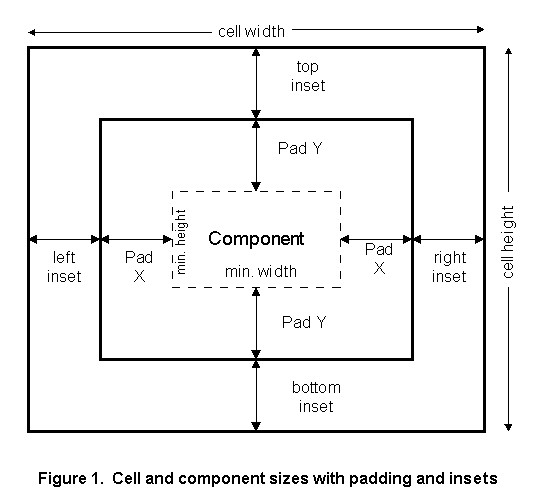
Figure 1 below may help explain the purpose and function of the other constraints which follow.
Fill constraints.
The fill constraint can be used to make a component grow taller, wider
or both to fill the boundaries of its cell, if it is smaller than its cell.
A component may be smaller than its cell if some other cell in the same
row or column contains a larger component, which causes all cells in that
row or column to be that size as well. Values for fill are: None, Both,
Vertical, or Horizontal.
Anchor constraints.
The anchor constraint can be used to position a component within its
cell, if it is smaller than its cell. Possible anchor values are Center,
plus the eight compass directions: North, Northeast, East, Southeast, South,
Southwest, West, Northwest. For example, North anchoring positions the
component next to the midpoint of the top boundary of the cell, while Southeast
anchoring positions the component next to the bottom right-hand corner
of the cell.
Pad constraints.
The pad constraints make a component wider (Pad X) or taller (Pad Y),
by adding a fixed number of pixels to the width or height of the minimum
component size (see Figure 1). When used on a container, this has the effect
of adding an internal buffer space between the border of the container
and the component(s) it contains.
The current Swing version (1.0.2) adds one-half of the pad value to each side of the container, even though the official Sun documentation says that the total pixels added are twice the value you specify. For example, if you specify a Pad X value of 100 pixels, this will result in adding 50 pixels to the left side of the component and 50 pixels to the right, thus making the component wider by a total of 100 pixels. Pad Y values act similarly.
Inset constraints.
The four inset constraints (left, right, top and bottom) add a fixed
number of pixels between the specified edge of a cell and the nearest edge
of the component it contains. This is commonly used to provide spacing
between components in adjacent cells (horizontally or vertically).
Insets may make a cell larger, if the existing component size plus the inset value are larger than the current cell size. However, if a component is in a cell considerably larger than the component (because some other cell in the same row or column is that large), then the inset serves only to position the component within the existing cell boundaries, in combination with the positioning caused by anchoring.
Weight X and Weight Y constraints.
The X and Y weighting constraints control how cells grow or shrink
as the frame they are in is resized. Note that unless a component has a
fill value other than "none", the component itself will not grow or shrink,
only the cell within which it is contained. This will make anchoring more
apparent when a cell has a nonzero weight value and the component's anchor
value is anything other than "center".
Weights are decimal values between 0.0 (meaning no resizing) and 1.0. A nonzero value specifies the relative number of pixels by which a cell size changes when its frame grows or shrinks. For example, the cell of a component with a WeightX value of 0.3 will grow wider by three pixels for every one pixel that the cell of another component with a WeightX value of 0.1 will receive when the frame containing them grows wider.